

Organize your mailbox with Urban Seller. You will be able to filter the emails, assign labels for easier identification, apply actions automatically based on the conditions chosen and etc.
To set your Message Rules and Priorities, follow the few steps below.
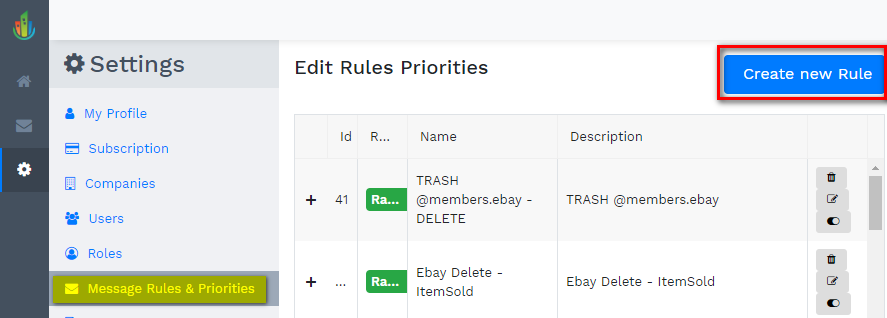
1. Go to Settings > Message Rules & Priorities > Create New Rule
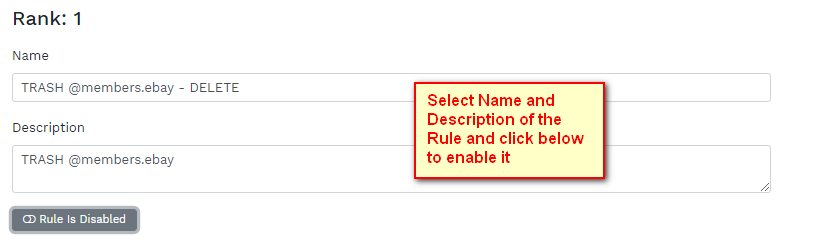
2. Choose a Name and Description of the Rule for your own ease.
Enable it from below once it is ready for use.
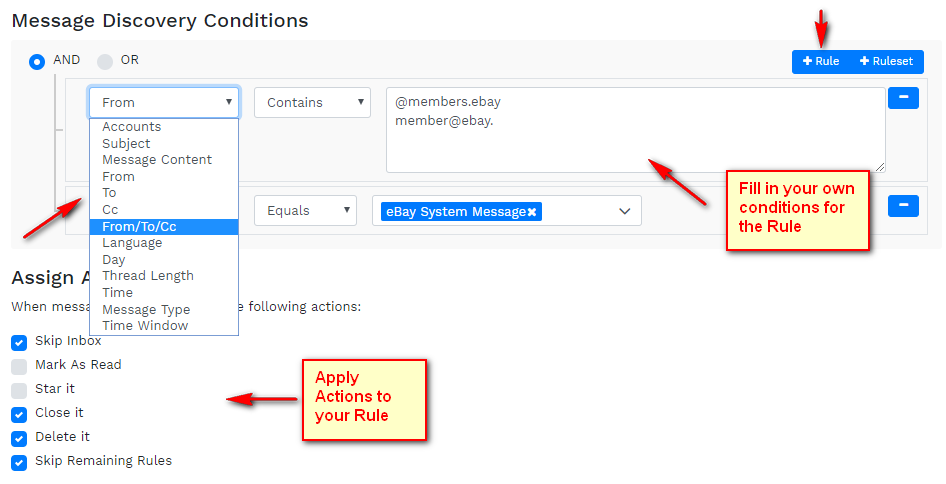
3. Set up your own Conditions of the Rule.
A rule may contain more than one condition. Bear in mind that this is recommended as it makes the rule to cover a wider range of email instances.
Assign Actions you would like to be applied to the filtered messages as shown below.
4. Add specifications to your Rule.
Add label - You can categorize your emails with labels so that you can see at a glance what types of emails are coming into your inbox. Choose among the pre-set labels or you may create a new one.
Example: Identify incoming emails as "eBay customers", "Amazon customers", etc.
Add Group - Add the Filtered Messages to a specific Group of the Drop Down menu.
Add note - Set a personalized note on a filtered email.
Example: You may use it as a form of communication to a team mate who is also handling the same inbox. It may also work as a reminder for any update or changes in your operating procedures.
Tag to - Filtered emails can be assigned to a specific team mate. The agent will be able to view the emails assigned to him on the Home Page-> Assigned/Tagged.
Example: Customer inquiries have different concerns. Some companies have a specific team mate in charge for a certain kind of concern.
Auto Respond - A useful feature which you can set to send generic responses.
Example: "Out of the office" auto response is very useful during Holidays or weekends when your office is closed. This will set proper expectations to your customers.
Set Owner - Set an Owner of this message filter so only the Owner can see those emails.
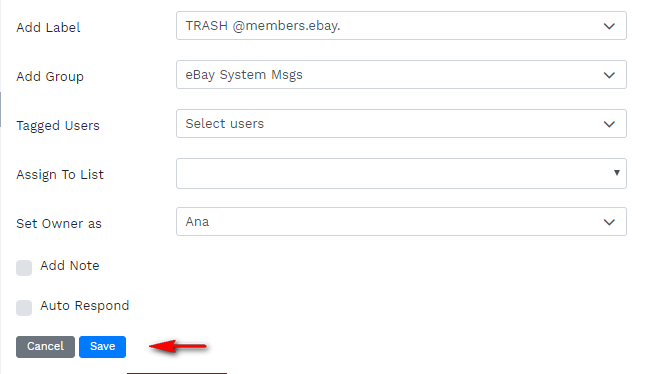
5. Click Save
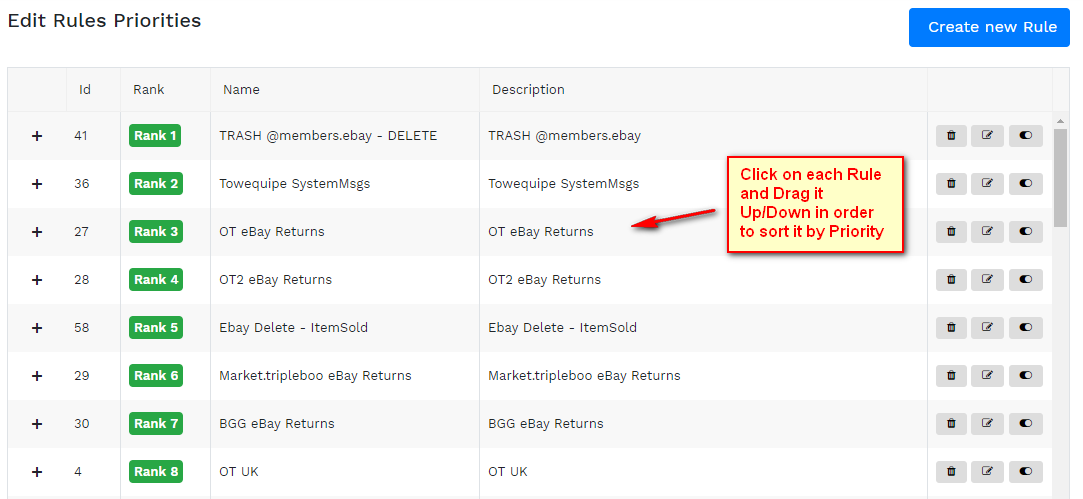
6. Click on each Rule and drag it Up/Down in order to arrange it by priority.
Comments
0 comments
Please sign in to leave a comment.