

You can easily set up an email autoresponder for your incoming messages.
In order to do this, you need to create a new rule.
Click on the Settings -> Message Rules & Priorities -> Create new rule
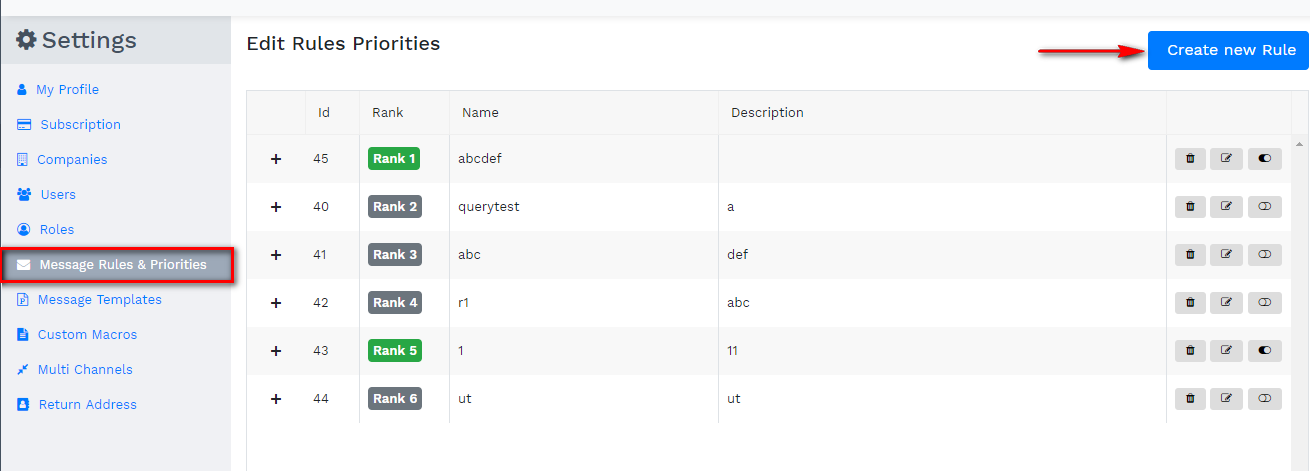
A rule settings window will appear where you need to set up the details.
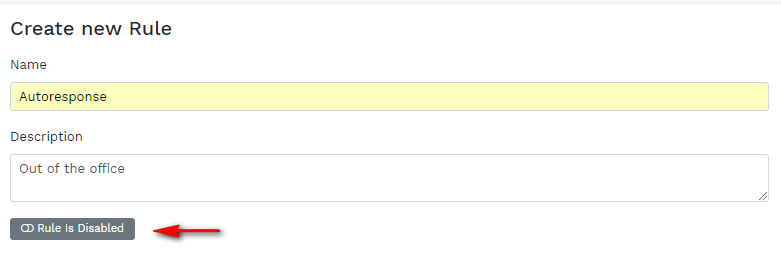
1. Fill in the Name and the Description of the rule and click below to Enable it.
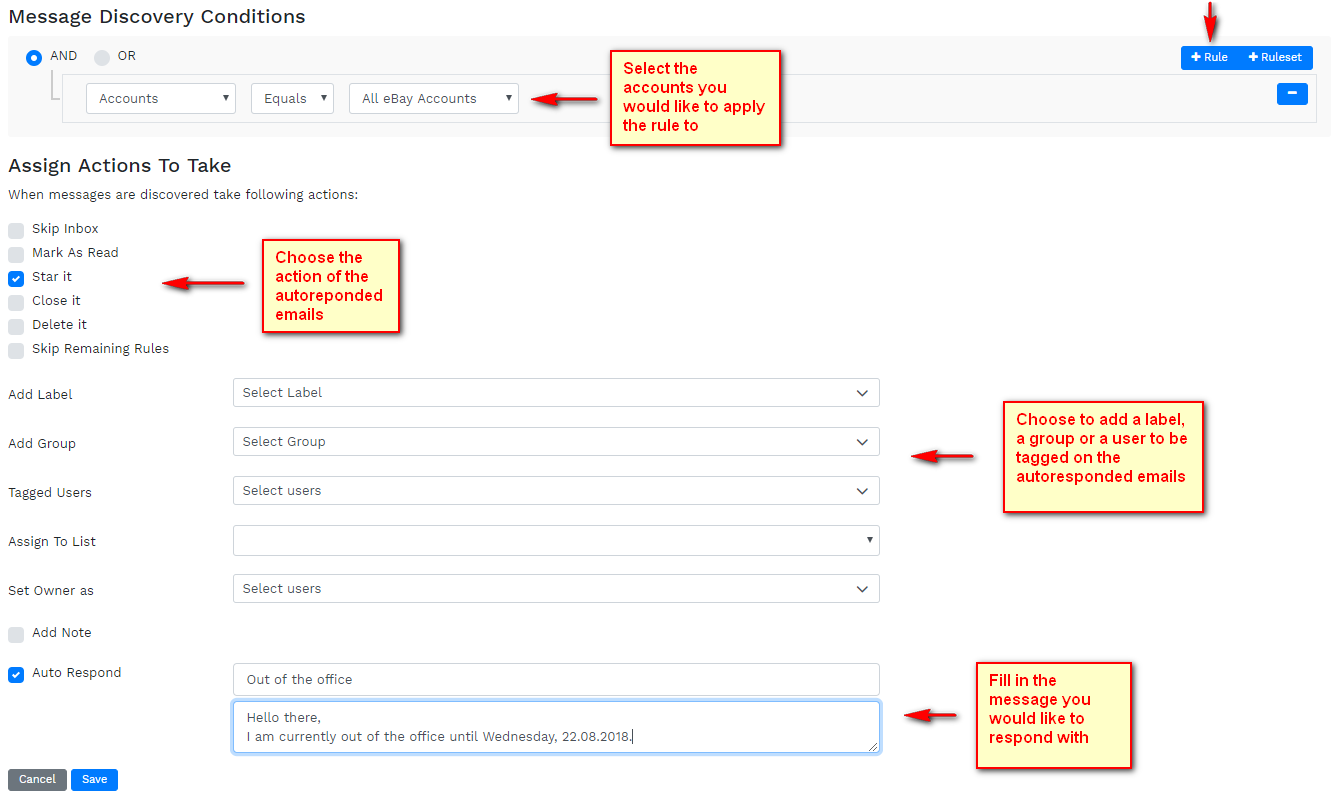
2. Set up the auto-response rule by Accounts, Subject, Language, Day etc. by clicking on the "Rule+" button on the right top corner.
"Assign Actions To Take" option gives you the opportunity of choosing the Status of the auto-responded emails so you can easily find them.
Add a label, a Group or Tag users to the email auto-responses for your own convenience.
Fill in the message you would like to respond with and once you finish - click SAVE.
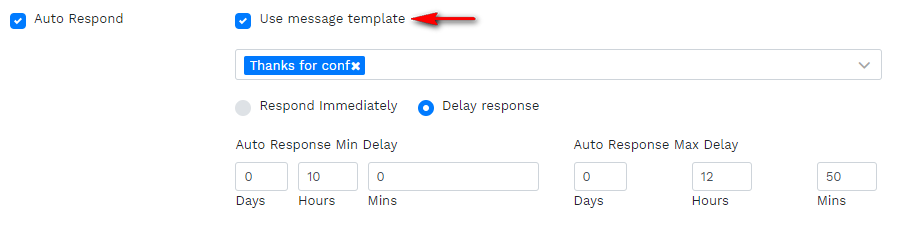
Choose if you want the Auto-response message to be sent immediately or with a certain delay.
If you would like to activate the "delay" feature, choose the time for the response.

If you would like the system to send a specific template as an auto-response, just select the checkbox as shown below and choose your template.
Click Save to proceed.
In an email thread, you will be able to see if а customer has received an auto-response as shown below:

Comments
0 comments
Please sign in to leave a comment.